

Annotate and sign a PDF
Mark text, write notes and place a handwritten signature.
PDF reader → Markup; select text → markup menu

What you can do
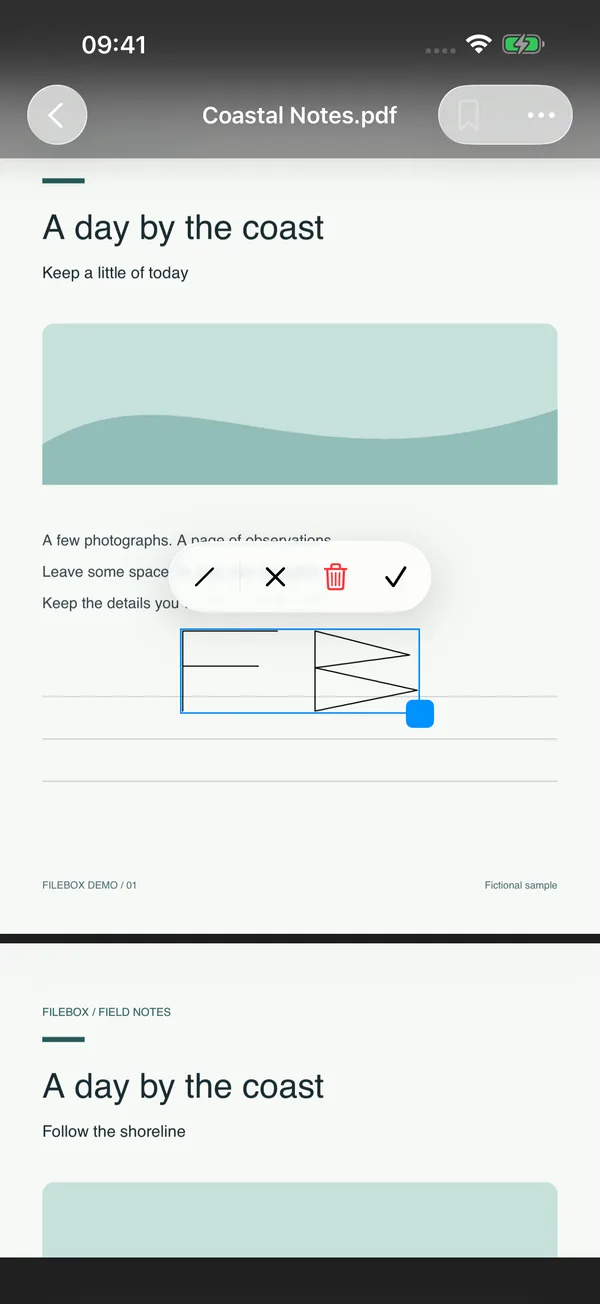
Highlight, underline or strike through selected text. Enter annotation mode to write with the system drawing tools or create a handwritten signature. Move, resize or delete signatures, with undo and redo for edits.
How to use it
- Open a PDF and select text with a long press. Use the markup menu to mark important passages.
- Choose Markup in the reader’s bottom toolbar. Write with the drawing tools or use their add menu to create a signature.
- Draw on the signature board and confirm. Adjust its position and size on the page, then confirm placement. Signature styles include color and stroke-width controls.
- Select existing content to use its available editing, deletion, undo and redo actions.
- Markup saves automatically to the original PDF. Let saving finish before leaving; resolve any save error and check the result.
Before you start
Text markup needs selectable text. Image-only PDFs support handwritten annotations; the scanning tool can also create searchable PDFs from images. Markup does not rewrite original paragraphs. On iOS 17, use the signature icon in the markup toolbar.
A handwritten signature is a graphic, not a certificate-based digital signature. Editing encrypted or restricted PDFs requires the appropriate owner permissions. Changes may invalidate existing digital signatures. In-place saving also modifies originals in authorized folders, so keep a copy when needed. Tool access follows your current membership or trial eligibility.