

Books & documents
Add a text watermark to a PDF
Watermark selected pages with adjustable color, opacity and tiling.
Where to find it
PDF reader → Watermark
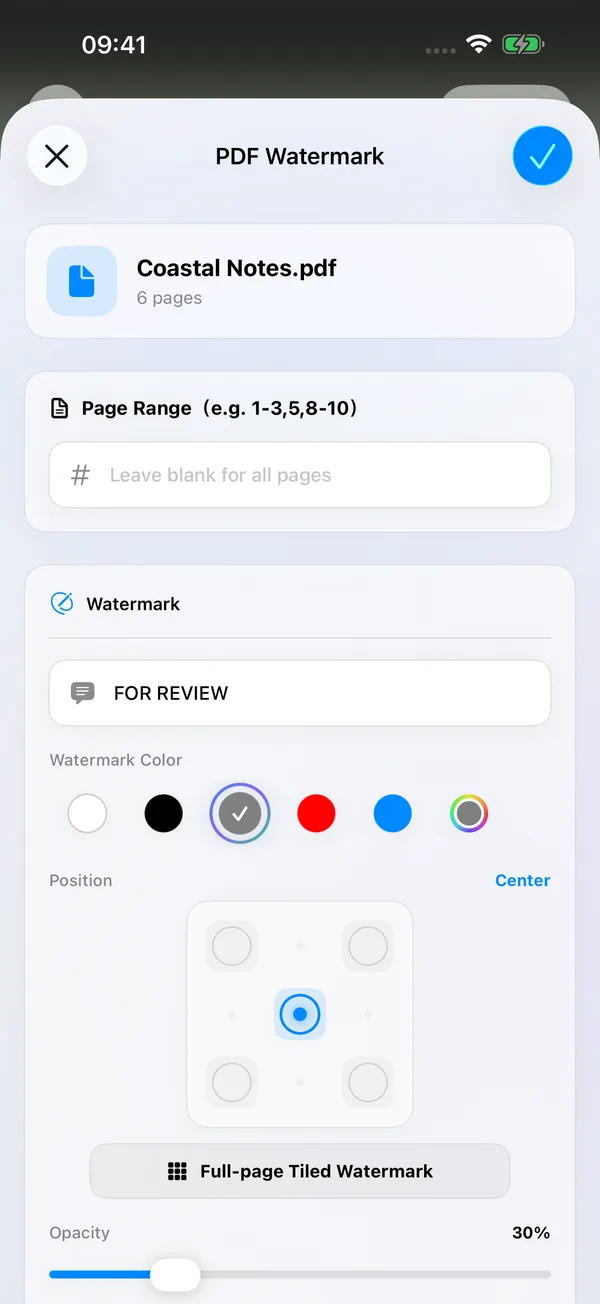

What you can do
Add a purpose, ownership note or review status to an existing PDF. Apply text to all pages or selected ranges, adjust its font size, color, opacity and position, or tile it across pages.
How to use it
- Open a PDF and choose Watermark in the reader’s bottom toolbar.
- Enter the text. Leave the page range blank for all pages, or enter a range such as
1-3,5. - Adjust the style and placement. Preview the result and check that essential content remains readable.
- Choose a destination and save a copy, or overwrite the source when available. For encrypted documents, confirm the output password as prompted.
Before you start
Watermarks are PDF decoration annotations. They are not permanent protection and cannot reliably conceal sensitive text underneath. Do not use a watermark alone to redact private information.
Document permissions apply, and encrypted PDFs require the appropriate owner permissions for editing. Changes may affect existing digital signatures. Keep a copy of important originals. Tool access follows your current membership or trial eligibility.