

Scan documents into searchable PDFs
Turn paper documents or photos into PDFs with text you can search and copy.
Tools → PDF → PDF Scan & OCR
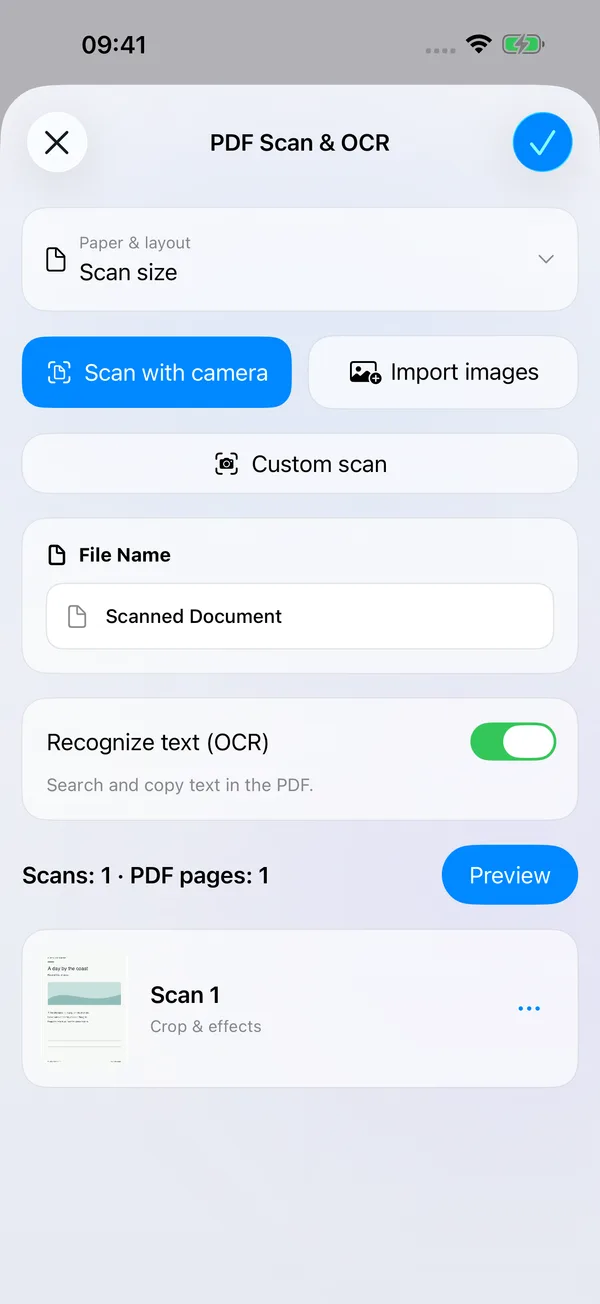

What you can do
Scan documents with the camera or import images from Photos, FileBox or Files. Correct corners, rotate pages and adjust their appearance, then create an image-only PDF or a searchable PDF with recognized text.
Keep each scan’s proportions or use A4, A5 or Letter paper. Choose portrait or landscape and place 1, 2 or 4 images per sheet. Fixed paper sizes also support document, photo, receipt and custom print sizes.
How to use it
- Open Tools → PDF → PDF Scan & OCR. Choose Scan with camera, Custom Scan or Import Images. Camera capture requires camera permission.
- Open a page’s crop and effects editor. Check the detected corners, rotate the page and choose an effect suited to the content. Reorder or remove images as needed.
- Open Paper & layout to choose paper size, orientation and images per sheet. Check that any fixed print size fits the sheet.
- Leave OCR enabled to search, select and copy recognized text in the exported PDF. Turn it off for image-only pages.
- Preview the pages, check their order and layout, then export to your chosen folder. Original images are kept.
Before you start
OCR runs on your device. Accuracy depends on image clarity, language and layout; handwriting, blurred text and complex pages may contain recognition errors. Check important details. This tool creates PDFs from scans or images; it does not add OCR to an existing PDF or export a separate text file.
Inputs and destinations can use authorized device and iCloud folders. Cloud inputs download as needed, and saving does not mean cross-device syncing has finished. Tool access follows your current membership or trial eligibility.