

Set, change or remove a PDF password
Manage the password needed to open a PDF and save the result with the required permissions.
PDF reader → Password
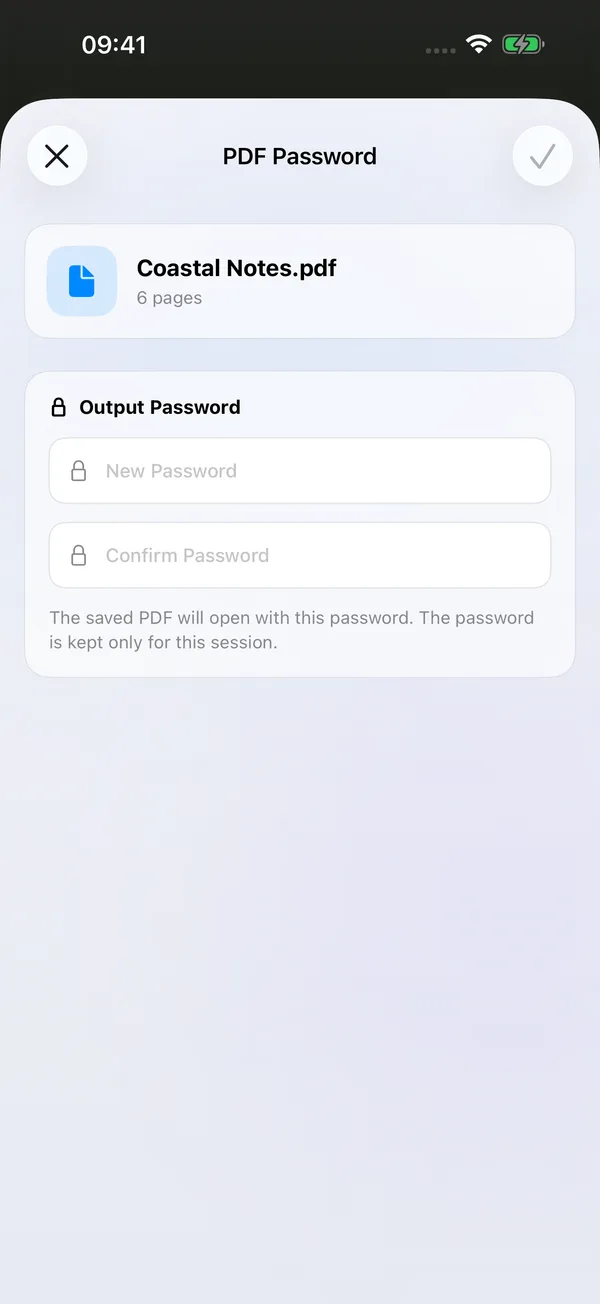

What you can do
Set a PDF’s opening password, change an existing password or save an unencrypted version when you have the required permissions. Save a copy to a chosen folder, or overwrite the source when available.
How to use it
- Open a PDF and choose Password in the reader’s bottom toolbar. Encrypted documents require the appropriate owner password first.
- Set or change the output password. To remove password protection, turn off output encryption.
- Enter and confirm the new password, check the settings and choose a destination.
- Reopen the saved result to verify its password before sharing or storing it.
Before you start
This tool cannot recover forgotten passwords or bypass document permissions. Permission to open a document does not necessarily grant owner permission to change its password.
Passwords are used only for the current operation session; FileBox does not save or recover them for you. A result with password protection removed can be opened without a password. Check before sharing. Tool access follows your current membership or trial eligibility.