

Books & documents
Split a PDF by page range
Split by pages per file, number of files or custom page ranges.
Where to find it
Tools → PDF → Split PDF; PDF reader → More → Split PDF
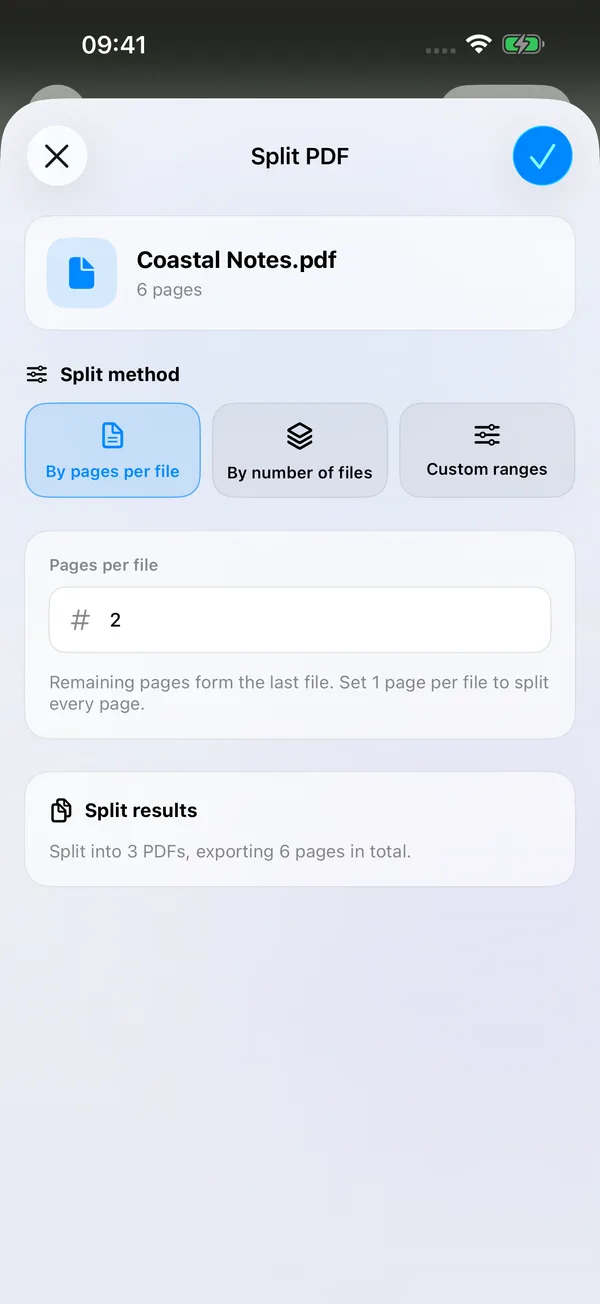

What you can do
Turn one PDF into several files. Split every page, group a fixed number of pages, divide the document as evenly as possible or select specific content with custom ranges.
How to use it
- Open Tools → PDF → Split PDF and choose a source, or enter from the PDF reader’s More menu.
- Choose pages per file and enter a number. Enter 1 for individual pages; any remaining pages form a final file.
- Choose number of files to divide the pages as evenly as possible. Earlier files receive any extra pages.
- For custom ranges,
1-3;4-6produces two files.1,3,5;2,4,6groups odd and even pages separately. Semicolons separate files; commas combine pages within one file. - Check the summary for file count, omitted pages and repeated pages, then export. The files are saved together in a result folder at the chosen destination.
Before you start
Splitting keeps the original unchanged. Output files do not inherit its password or reading records. Different custom groups may include the same page, so review the summary.
Unlock password-protected source documents and respect their permissions. Splitting has no fixed page-count limit, but source size, output size and available storage still apply. Tool access follows your current membership or trial eligibility.