

Export PDF pages as JPG or PNG
Choose pages and image quality to export a PDF as images.
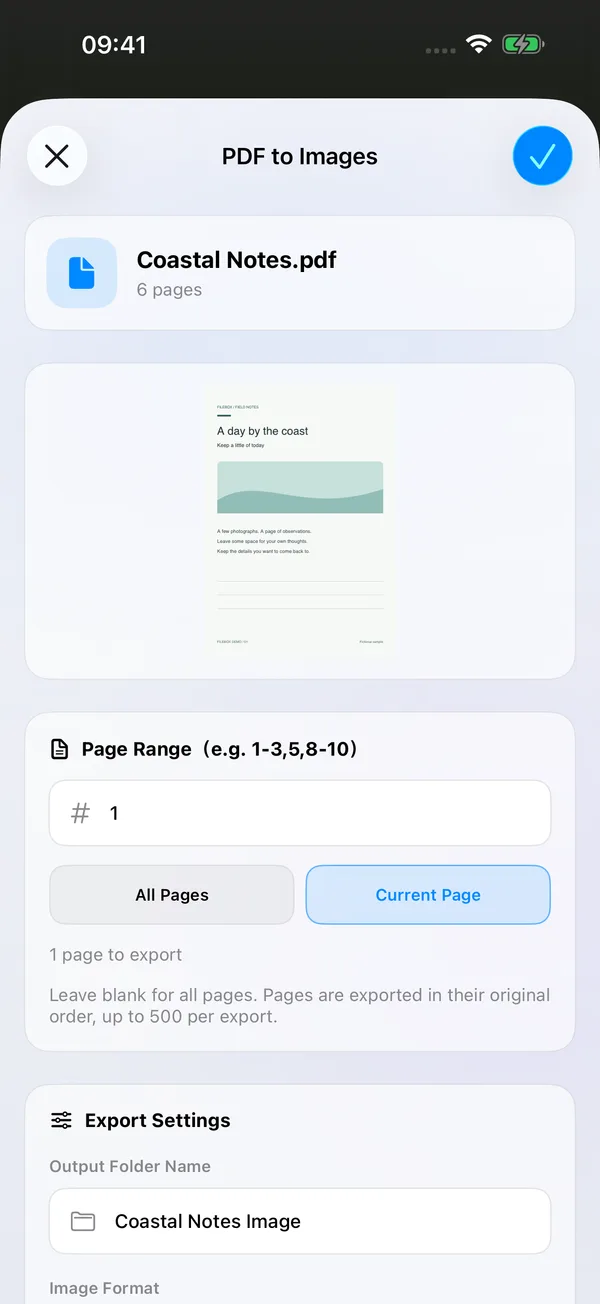
Tools → PDF → PDF to Images; PDF reader → More → PDF to Images

What you can do
Export all pages, the current page or a page range as JPG or PNG images. Use them in image workflows, combine them into a long image or send them to someone who only needs pictures. Choose Standard, High or Ultra quality.
How to use it
- Open Tools → PDF → PDF to Images and select a PDF, or use the PDF reader’s More menu.
- Select all pages or enter a range such as
1-3,5,8-10. Entry from the reader also offers the current page. - Choose JPG or PNG, image quality and a result-folder name. Check the page count.
- Confirm the destination and export. Images use the original page numbers and are saved together in the result folder.
Before you start
Export up to 500 pages at a time from a source PDF of up to 512 MiB. Output size and device resources also limit the operation. Encrypted documents need a password; documents that prohibit content copying cannot be exported as images.
The source PDF and reading records stay unchanged. Exported images do not carry the PDF’s password, so check their contents before sharing. Tool access follows your current membership or trial eligibility.