

Organize and merge PDF pages
Reorder, rotate and remove pages, or insert images and other PDFs.
Tools → PDF → Organize Pages; PDF reader → More → Organize Pages
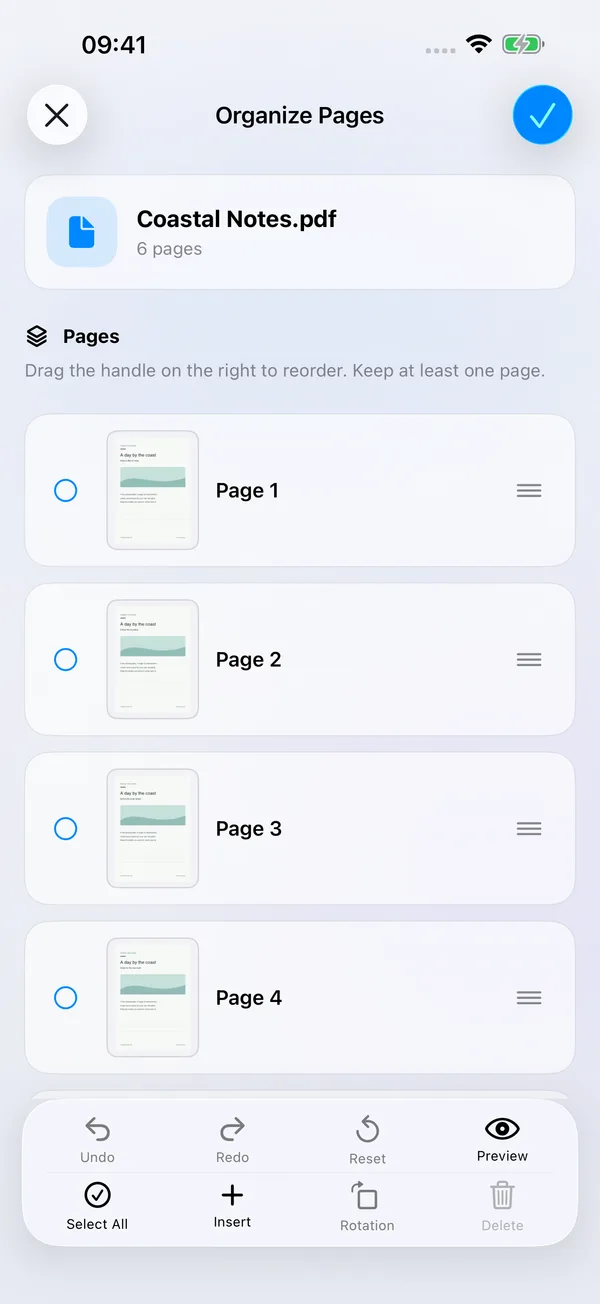

What you can do
Bring pages from PDFs and images into one document. Reorder pages, rotate a selection, remove unwanted pages or insert more content at a chosen position. Undo, redo and preview help you check the result.
How to use it
- Choose Tools → PDF → Organize Pages and select a source, or open Organize Pages from a PDF reader’s More menu.
- Drag a page’s reorder handle to move it. Select one or more pages to rotate or delete them.
- Choose Insert, select a position and import images or another PDF. Its pages join the document; arrange them to finish the merge.
- Preview the result and confirm its name and destination. Save a new copy by default, or overwrite the source when the interface allows it.
Before you start
Page organization preserves page text and vector content. Operations depend on document passwords, editing permissions and the source. Additional PDFs that require a password cannot currently be inserted; prepare an accessible copy first.
A new copy does not inherit the original’s reading records. Available overwrite operations update bookmarks and reading progress to match the new page order. Outlines, cross-page links and existing digital signatures may not remain valid after restructuring. Keep important originals. Tool access follows your current membership or trial eligibility.