

My iCloud: manage cloud files in place
Authorize iCloud Drive folders to download, read and organize files, choose tool inputs and save results.
Spaces / bottom space menu → My iCloud → More → Grant Folder Access
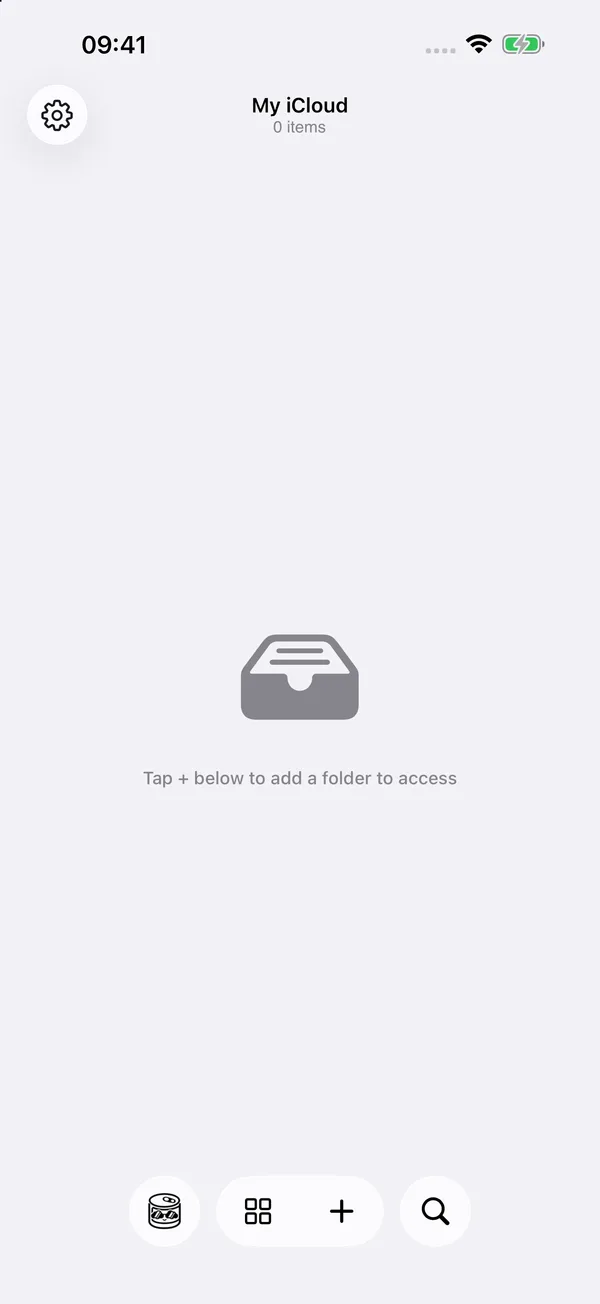

What you can do
Authorize an iCloud Drive folder and use its originals in My iCloud without importing copies into the main space. Open images, Live Photos, audio, video, PDFs, TXT, EPUB/MOBI and comics. Create folders or text files, rename, tag, customize icons, copy, move, compress, extract and delete files.
Choose authorized iCloud folders as inputs or destinations for image, media and long screenshot tools. Starting a tool inside a folder uses that folder for input browsing and the default export destination; you can change the destination before saving.
How to use it
- Sign in to iCloud and enable iCloud Drive in system settings. In FileBox, open My iCloud from Spaces or the bottom space menu.
- Tap the bottom plus button (More) → Grant Folder Access and select a folder in iCloud Drive using the system picker. Access covers only the folder you choose; add more folders as needed.
- Open an authorized folder. Tapping an undownloaded file starts its download. Once it finishes, tap again to play, read or extract it. You can keep browsing during downloads and retry failures.
- Long-press a file or enter selection mode to organize, share or download it. When available, choose Remove Download to free its local copy while keeping the cloud original. This differs from deleting the file.
- Search authorized folders from the home page, or search the current level inside a folder. Use the destination picker’s breadcrumbs when copying, moving, extracting or exporting tool results.
- To stop accessing a folder, remove access from its home-page context menu or use edit mode for several folders. Originals stay in place; grant access again if authorization becomes unavailable.
Before you start
Lists, search and file details do not download file contents just to display them. Opening, sharing and tools that need originals prepare the required files. Availability depends on iCloud, your network and device storage; streaming during download is not guaranteed. Files awaiting upload, in transfer or in conflict may not allow removal of downloads; follow the on-screen explanation.
Edits, moves and deletions affect iCloud originals and are then synced to other devices by the system. A successful save or export means the system folder accepted the file, not that upload or cross-device sync has finished. Tags, icons and reading records stay on this device; cross-device sync of these records is not promised. Reading progress is not transferred by cross-source moves.
Default deletion prepares the files and places them in FileBox’s local Trash before removing the iCloud originals. This may require downloading and local storage. Delete Immediately requires a second confirmation and creates no FileBox recovery copy. You can also open the system Files app to manage deletion yourself. FileBox Trash and the system Recently Deleted are separate; check the destination when restoring.
Storage analysis covers authorized folders only. Its total includes undownloaded files and is neither local disk usage nor your iCloud account quota. Duplicate detection reads downloaded content only. My iCloud is currently unavailable in the Wi-Fi browser.