

Manage system folders directly
Authorize a folder and browse, play and organize its files in My iPhone or My iPad, right where they are.
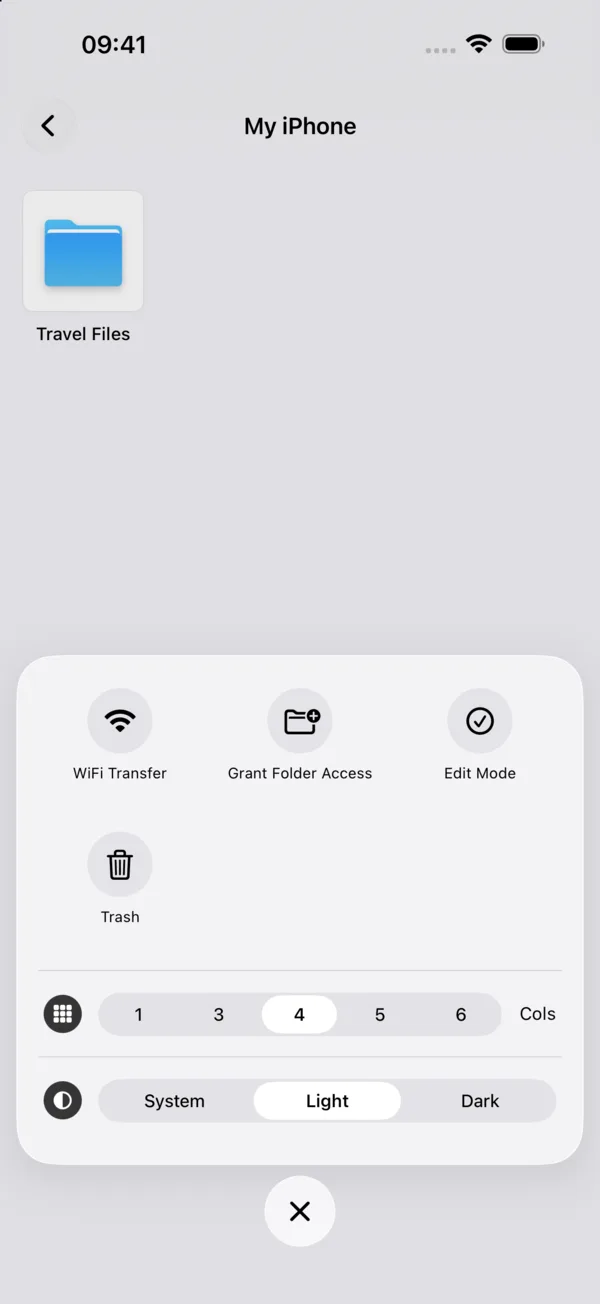
Spaces → My iPhone / My iPad → More → Grant Folder Access
What you can do
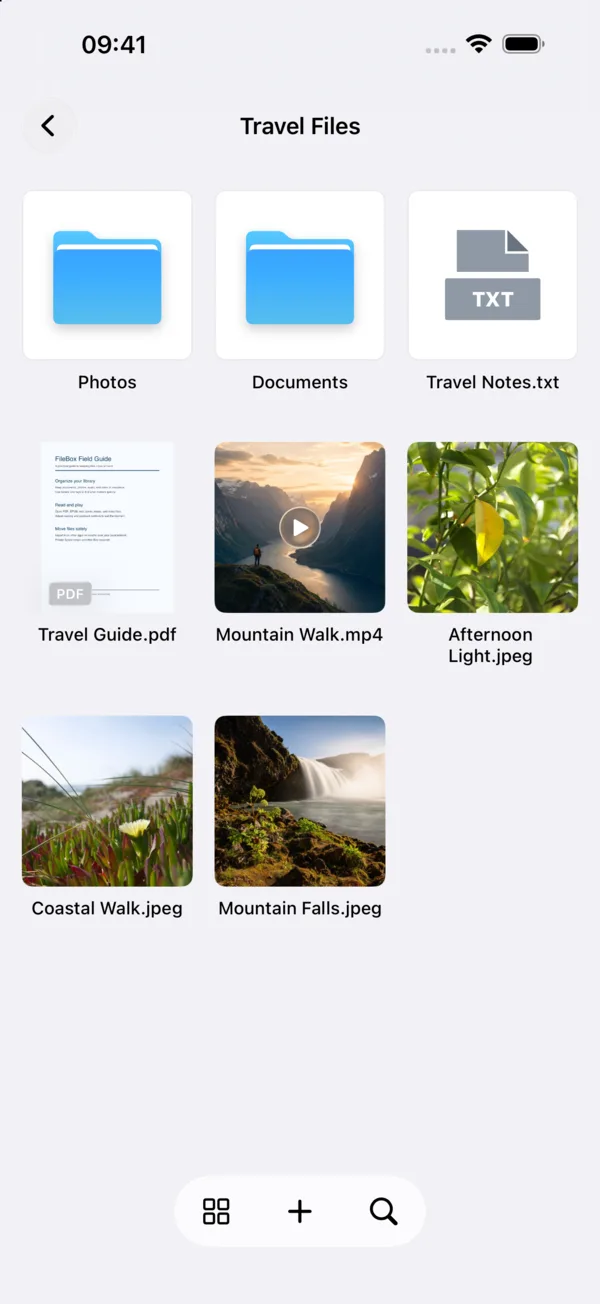
Give FileBox access to a system folder and use its files in My iPhone or My iPad without first importing a copy. Open images, Live Photos, videos, music, PDFs, TXT, EPUB/MOBI and comics, or organize files, edit text and use supported editing tools.
Authorized folders support new folders and text files, Photos import, copying, moving, renaming, batch actions, tags, folder icons, compression and extraction. You can also choose them as a tool’s input or export destination. On iPad, drag their content into multitasking windows.
How to use it
- Return to Spaces and open My iPhone or My iPad.
- Tap More at the bottom, choose Grant Folder Access, then select and confirm a folder in the system file picker.
- Open the authorized folder. Tap a file to play or read it, or use its context menu and edit mode to organize it.
- Search, sort or filter by tags inside a folder. For copying, moving or exporting, choose a destination space and folder.
- Authorize the folder again if access becomes unavailable. To stop accessing it, remove its authorization from the folder menu or edit mode on the authorization home page.
Before you start
Access covers only the folders you select, not the entire device or every app’s private files. Removing authorization leaves the originals intact. Editing, moving or deleting inside a folder changes its original content.
Use My iCloud to authorize iCloud Drive folders separately. See the My iCloud guide. Other file providers offered by the system picker determine whether files are available and writable; authorization does not mean all content is downloaded locally.
Default deletion from device folders uses the shared non-private Trash. Choosing immediate deletion and confirming again creates no FileBox recovery copy. If the original location is unavailable, use Restore to… to choose another destination. Reading progress is not transferred when moving between FileBox spaces and device folders.