

Trash
Browse deleted files, recover mistakes or reclaim space.
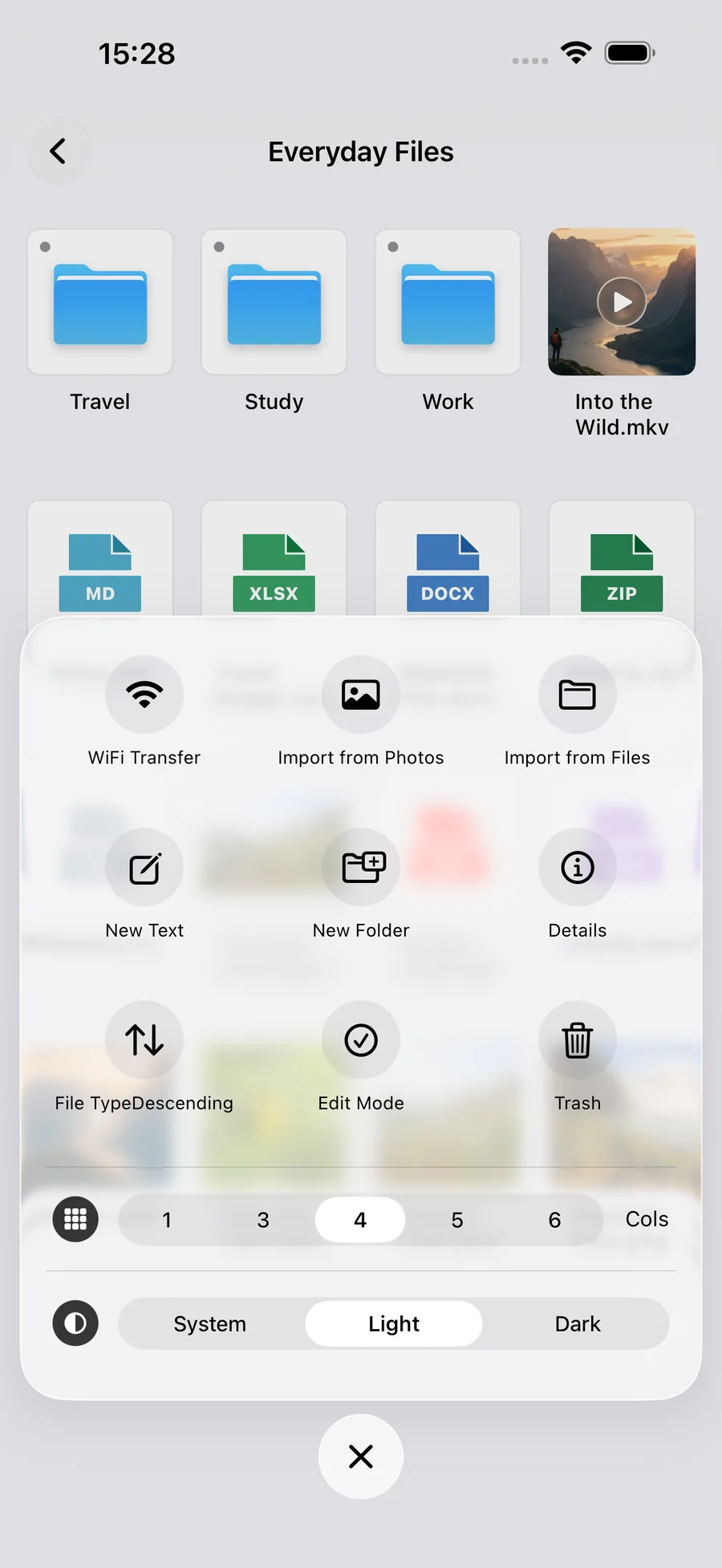
File list More menu → Trash
What you can do
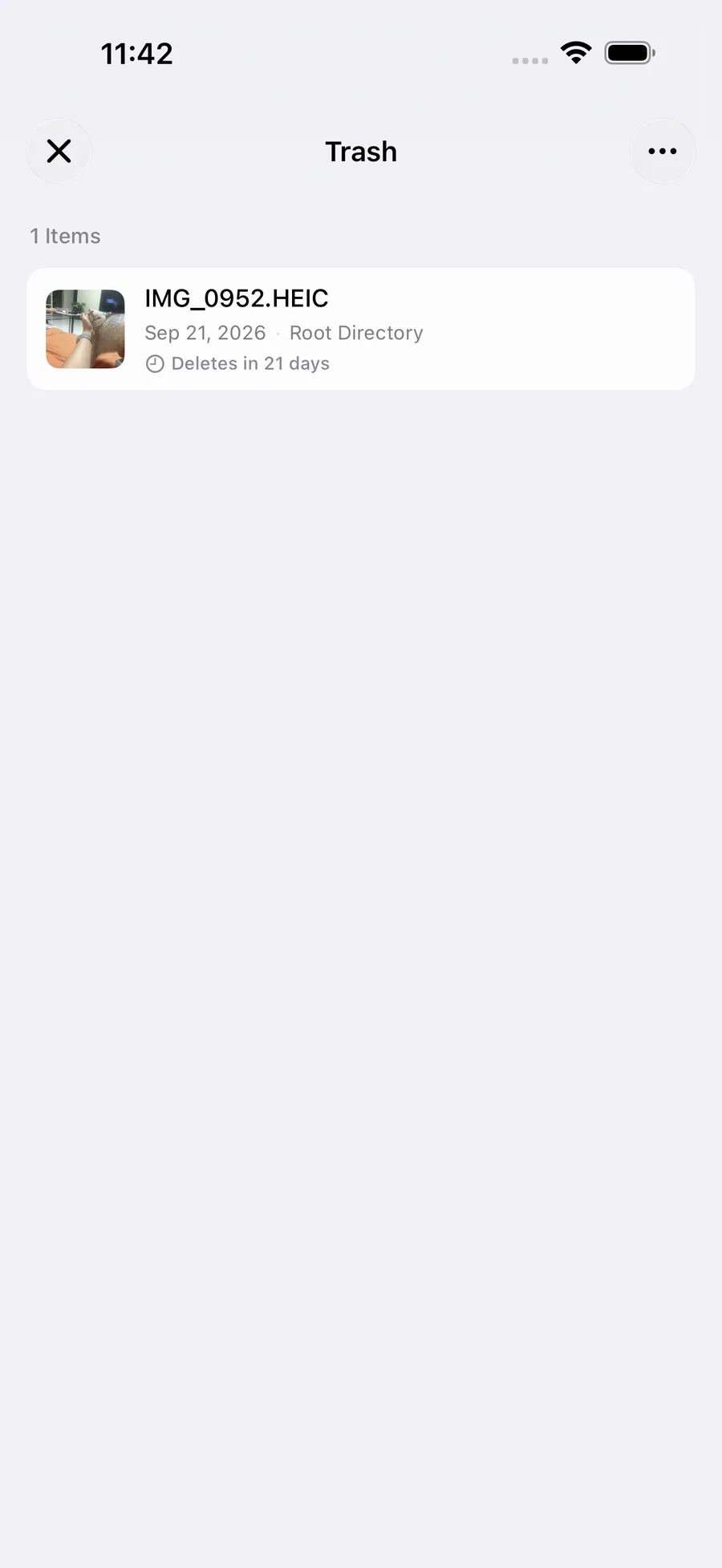
Browse deleted files, recover mistakes or clear recovery copies. The main space, My iPhone/iPad and My iCloud share non-private Trash records. Private-space Trash stays separate and requires an unlocked session.
How to use it
- Open the bottom space menu and choose Trash, or enter through the file list’s More menu.
- Browse records or open a deleted folder and select items to restore.
- Restore to the original folder when available. To use another destination, choose Restore to… from the context or swipe menu and select a writable folder.
- Permanently delete copies you no longer need, or let the configured retention period clear them automatically.
Before you start
Default iCloud deletion downloads required content, saves it in local Trash and then removes the cloud originals. Recovery copies use device storage; the system syncs cloud deletions to other devices. The confirmation panel also offers immediate deletion with a second confirmation, creating no FileBox recovery copy. You may instead open the system Files app to manage deletion yourself.
Removing folder access leaves originals intact. Existing recovery copies can be restored elsewhere if the original folder or authorization is unavailable. Conflicting names are numbered automatically, and Live Photo pairs are restored together. Upload and cross-device sync continue through the system after restoring to iCloud.
FileBox Trash differs from the system Recently Deleted. Immediate deletion and permanently clearing FileBox recovery copies cannot be undone in FileBox. Check your selection first; some items in a mixed restore may need another destination.