

Create a CBZ comic
Arrange your own images, add an optional password or text watermark, and export a CBZ comic.
File list → Tools → Images → Create comic
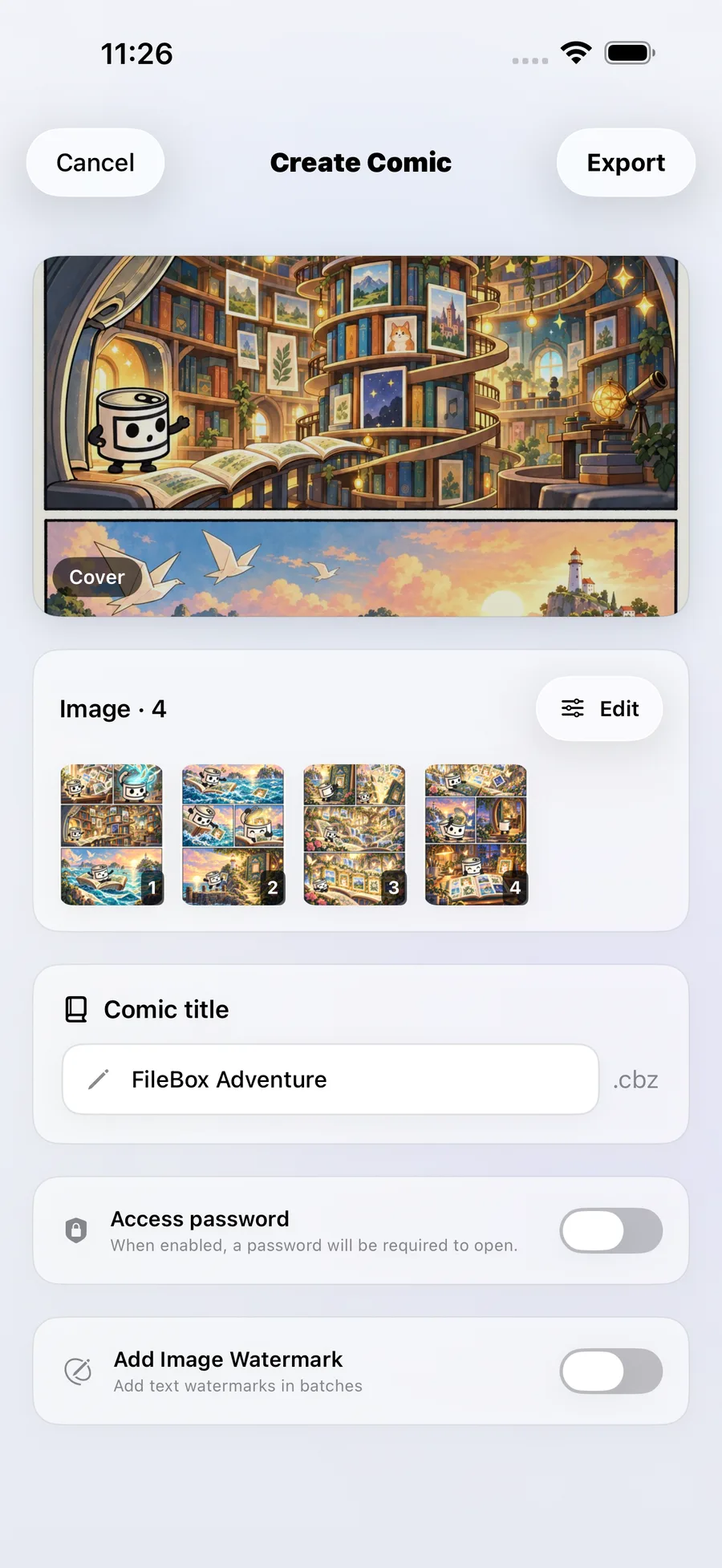

What you can do
Combine images from FileBox, the Files app or Photos into a CBZ comic. Arrange the pages, name the comic, and optionally add an access password or a text watermark to every page.
Read the exported CBZ directly in FileBox, or organize and transfer it as a single file.
How to use it
- From the file list, open Tools → Images → Create comic. Choose a source and add your images.
- Tap Edit to arrange the images, then preview the pages. The first image becomes the cover.
- Enter a comic name. Optionally enable an access password or image watermark and configure it.
- Tap Export, choose a destination folder and confirm. Open the new CBZ from the file list to read it.
Before you start
This tool organizes existing images into a comic; it does not draw or generate comic artwork. It exports CBZ, not CBR. Supported static images include JPEG, PNG, WebP, HEIC and HEIF.
If you set an access password, it is required to open the comic. Check that other readers support the encrypted CBZ before opening it there. A text watermark is written into the exported page images; your source images are preserved.