

Comic reader
Read CBZ, CBR or an image folder your way, with bookmarks and saved reading progress.
File list → Open CBZ / CBR; Image folder → Tools → Images → Read as comic
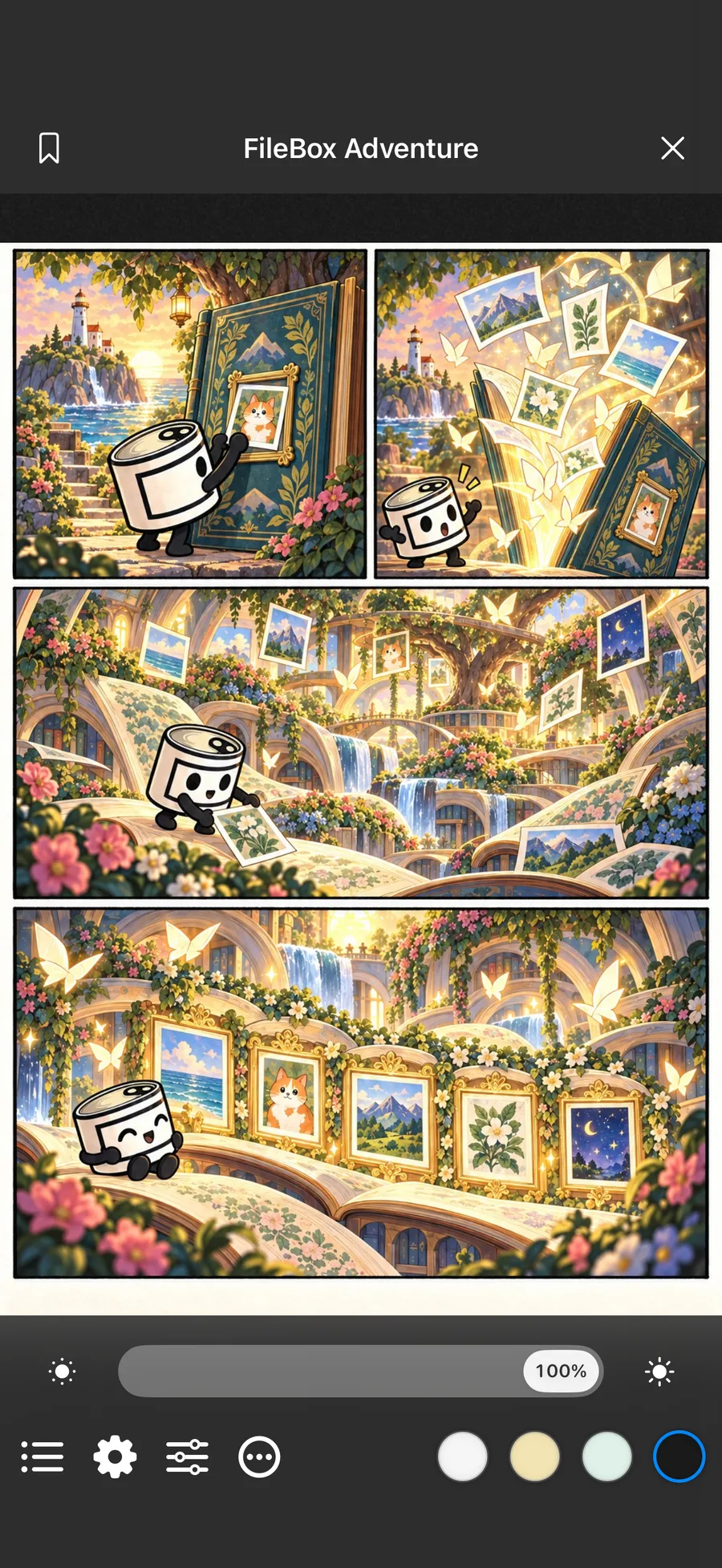
What you can do
Open CBZ and CBR comics, or read the images in your current folder as a comic. Choose horizontal paging, right-to-left reading or continuous vertical scrolling. On iPad, choose single-page or two-page viewing.
Jump with page thumbnails, a page number or the progress slider, add bookmarks, and adjust the reading theme and image brightness. Reopen a comic to continue where you left off, or save the current page as an image.
How to use it
- Tap a CBZ or CBR file in FileBox, an authorized device folder or an iCloud folder. For an image folder, open it and choose Tools → Images → Read as comic, or use the folder’s context menu.
- Tap the center of the page to show the controls. In settings, choose your reading direction, mode and theme.
- Open contents for page thumbnails or bookmarks, or jump using the progress bar or page number. Add bookmarks as needed.
- Close the reader when you finish; your progress is restored next time. Choose Save image from the More menu to select a destination folder.
Before you start
Image folders include only images at the current level. Open subfolders separately to read their images. Supported static images are JPEG, PNG, WebP, HEIC and HEIF.
Password-protected comics require the correct password. Split archives and nested archives are not supported; jumping through some large CBR files may take time. Saving in single-page mode exports the current page; two-page mode exports both pages in the current pair.