

Personalize FileBox
Adjust file layout, playback preferences and cleanup rules in General Settings.
Settings → General Settings
What you can customize
-
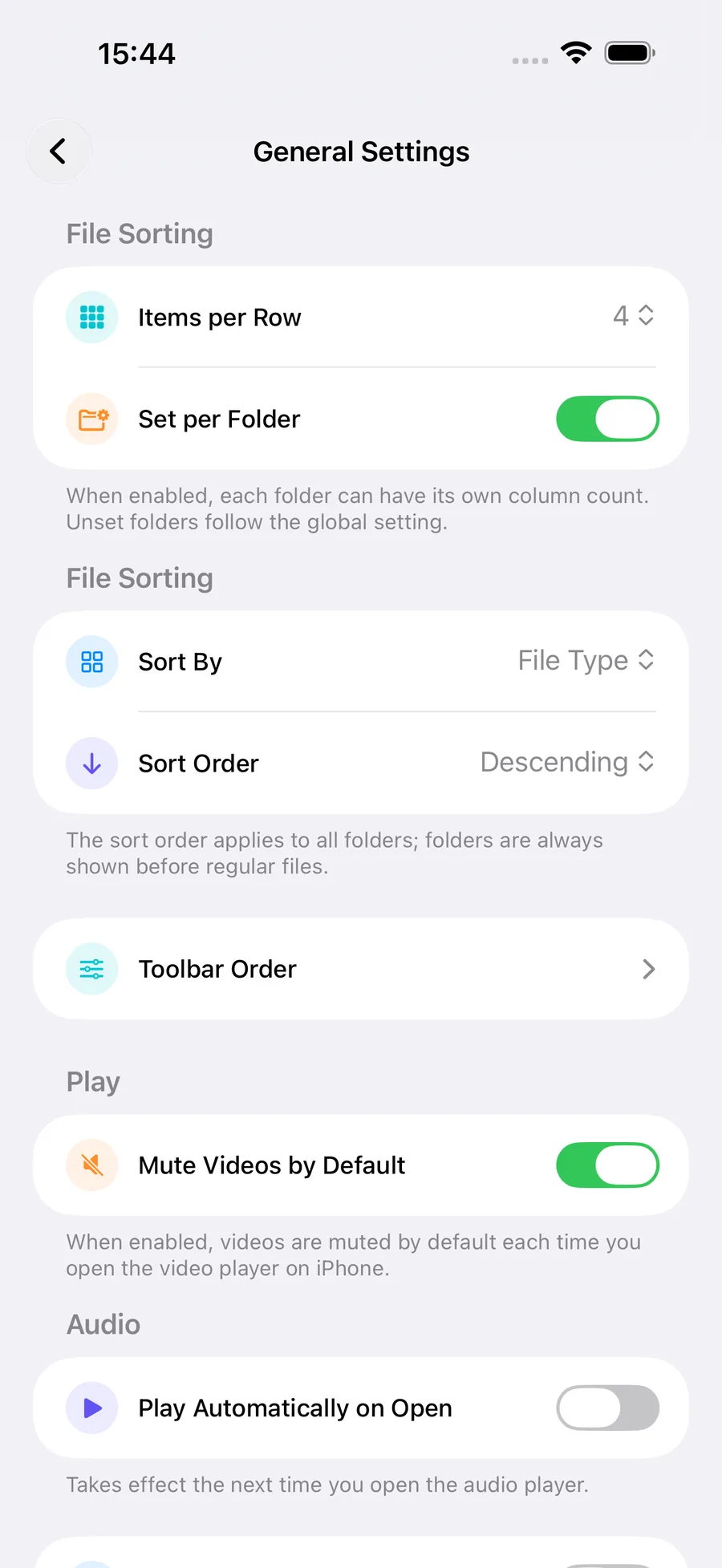
File layout: Items per row and optional column counts per folder. On iPad, set separate counts for wide and narrow file areas.
-
File order: Sort criterion and direction, plus the order of actions in the selection toolbar.
-
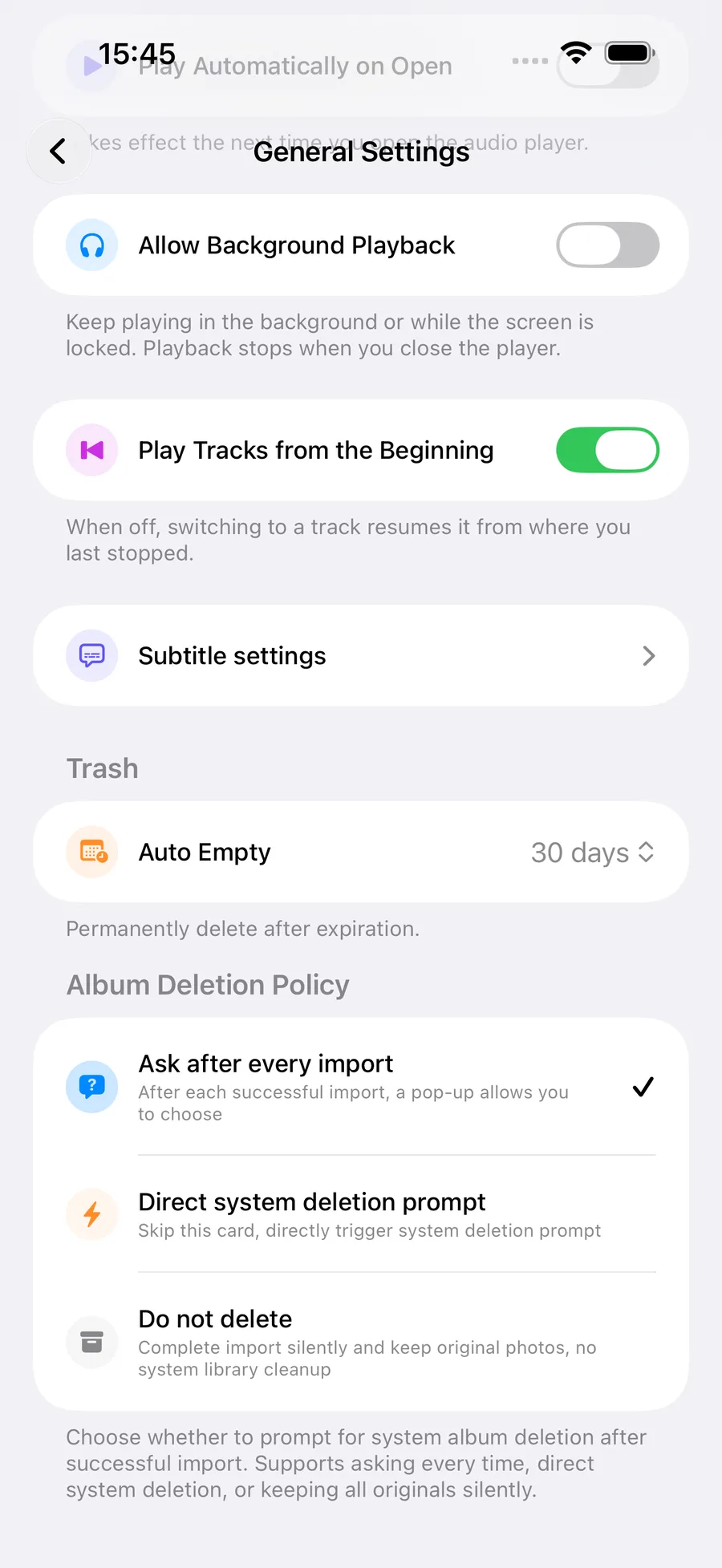
Playback: Whether videos start muted on iPhone and enable Picture in Picture by default; whether audio starts automatically, continues in the background or restarts when changing tracks.
-
Subtitle defaults: Open the subtitle settings page to adjust defaults for new playback tasks.
-
Trash: Set when deleted items are cleared automatically.
-
Photos cleanup after import: Ask each time, request system deletion directly, or leave originals alone.
-
System permissions: Open System Permissions at the bottom of General Settings to review or change app permissions in system settings.
How to use it
- Open Settings, then General Settings.
- Adjust the options you need. Toolbar order and subtitle defaults open their own detail pages.
- Return to the file list or player to see the updated preferences.
Choose your Home Screen icon separately in Settings → App Icon. See Choose your Home Screen icon.
Before you start
Folders always appear before ordinary files. Starting videos muted applies to newly opened players on iPhone; audio preferences take effect as described by each setting.